All blogs
Mobile App Development
How to Request Apple Expedited Review After Submission
How to request Apple expedited review after submitting a build: required details, reviewer access, approvals, and tracking.
7 min read
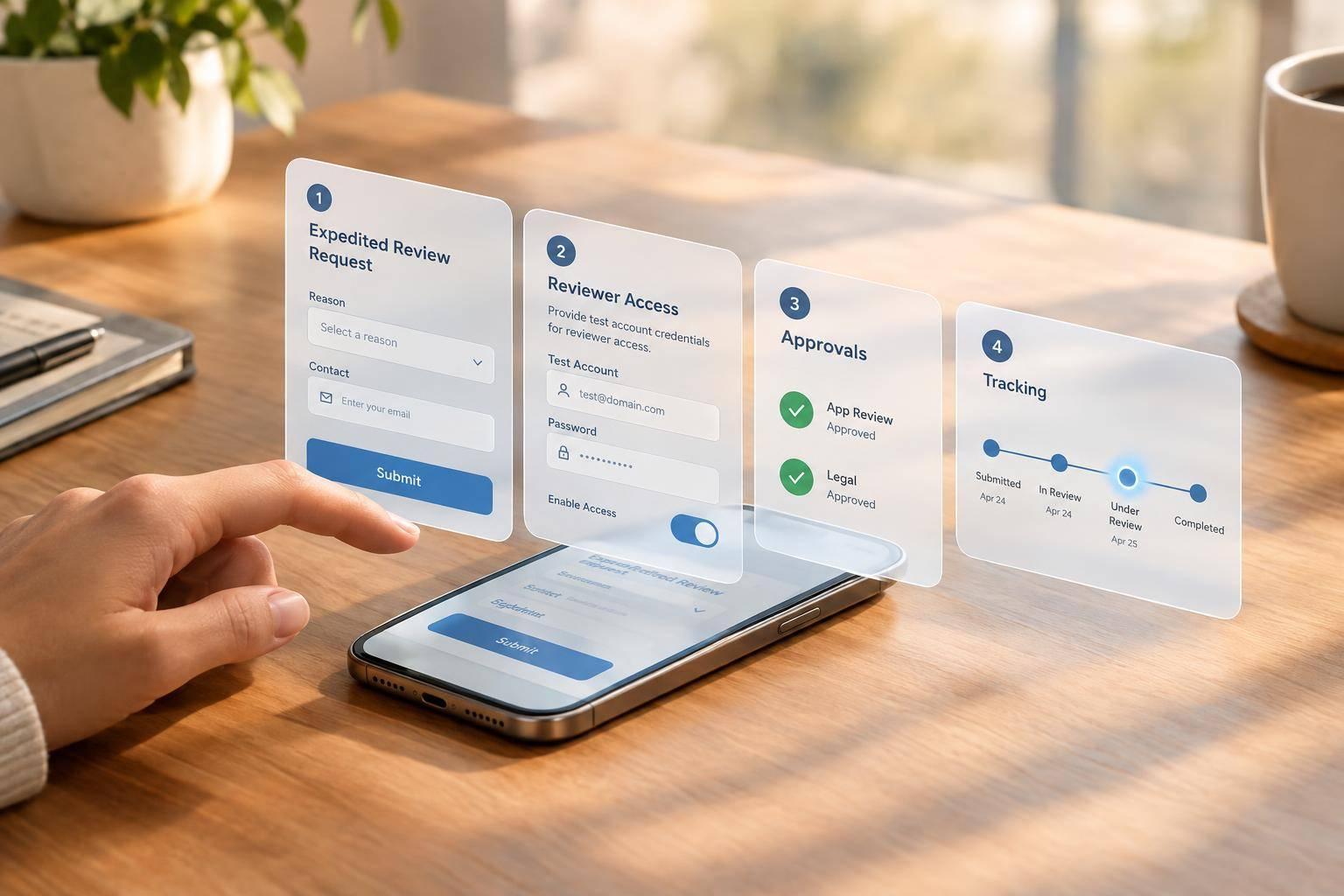
How to Request Apple Expedited Review After Submission
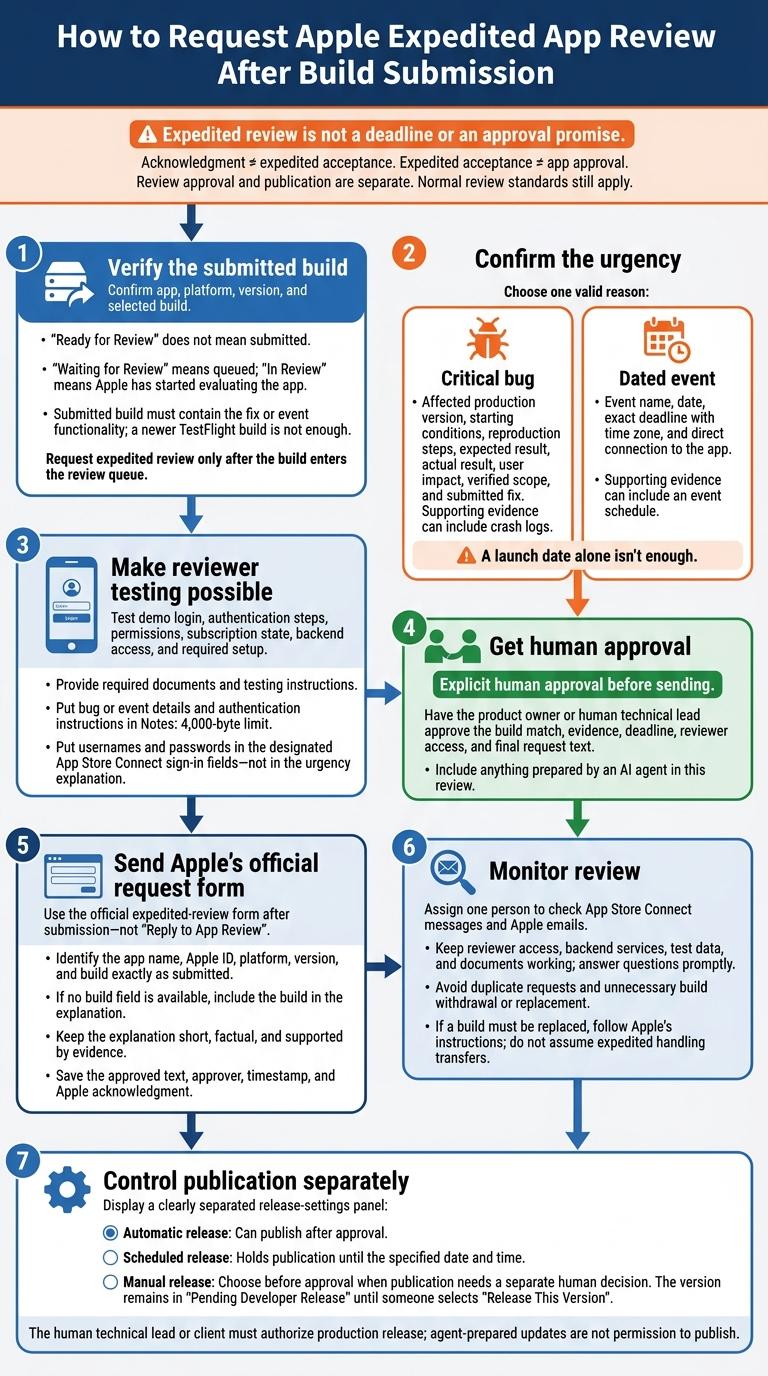
To request Apple expedited review, submit your build first, then use Apple’s official expedited-review form. I’d use this route for a critical bug fix or an app tied to a dated event - not routine launch pressure.
Before sending, I’d check these points:
- Match the submitted build. “Ready for Review” does not mean submitted; check that the build is queued or under review.
- Explain the urgency. Include the app, platform, version, and build, plus bug impact and reproduction steps or the event date, time zone, and app connection.
- Make testing possible. Check reviewer access and notes. Keep passwords in the designated sign-in fields, not the request.
- Get human approval. Have the app owner or technical lead approve the details, including anything AI prepared.
- Track review and release separately. Watch Apple’s messages, keep access working, and check release settings before approval.
My main caution: <u>expedited review is not a deadline or an approval promise</u>. Use the dedicated form - not Reply to App Review - and choose manual release if publication needs a separate human decision.
App Store Review Taking Too Long? How to Request Expedited Review
sbb-itb-622dc24
1. Check Your Reason and Submission Status
Open the intended app and platform in App Store Connect, then check the version and selected build. “Ready for Review” does not mean submitted. “Waiting for Review” means the app is queued; “In Review” means Apple has started evaluating it. To complete submission, select the correct build, finish the metadata and App Review Information, resolve warnings, and submit for review.
Make sure the submitted build contains the fix or event functionality. Having a newer build in TestFlight isn't enough. Request expedited review only after the build enters the review queue. Then check the reason, access, and evidence Apple will see.
Check Whether Your Reason Fits Apple's Guidance
Check your reason against Apple’s App Review guidance:
- Bug: Include the affected version, starting conditions, reproduction steps, expected result, actual result, and user impact.
- Event: Include the exact date, time zone, and why the app is needed during that window.
A launch date alone isn't enough, and approval is discretionary. If your reason fits the guidance, check that reviewers can test the app.
Check Review Notes and Demo Access
Before requesting expedited review, test the reviewer’s login, authentication steps, permissions, subscription state, and backend access. Explain any required setup, and provide the documentation or testing instructions needed for regulated or AI-powered features. Put bug or event details in Notes, which has a 4,000-byte limit.
Once the details are ready, have a human lead sign off on the request package.
Get Human Approval of Prepared Details
Before sending the request, have a human technical lead approve the build match, supporting documents, deadline, and reviewer access - including any agent-prepared details. Put usernames and passwords in the designated App Store Connect sign-in fields, not in the urgency explanation. Include any needed authentication instructions in Notes.
2. Submit Apple's Expedited Review Request
Once the app is in App Review, open Apple’s Request an Expedited App Review form. Sign in if prompted, then select the submitted app and platform. Confirm the submitted build and keep the request short, factual, and tied to the exact review queue.
Identify the Submitted App and Build
Enter the app name, Apple ID, platform, version, and build exactly as submitted. If the form has no build field, include the build in your explanation. Once those details match, explain the urgency in one clear paragraph.
Explain the Urgency and Provide Supporting Evidence
Describe the problem, its impact, and the deadline pressure. For a critical bug, include the affected production version, verified scope, reproduction steps, and submitted fix. For an event, provide its name, date, exact deadline with time zone, and direct connection to the app.
Support the request with crash logs or an event schedule - not estimates, marketing claims, or inflated severity. Keep it focused on the app, build, issue, impact, and deadline. Then get final human approval before sending.
Get Human Approval Before Sending
Get explicit approval from the product owner or human technical lead before sending. Save the approved text, approver, timestamp, and Apple acknowledgment. An acknowledgment does not mean Apple has approved expedited review.
3. Track Review Status and Avoid Delays
After submission, track the exact build Apple is reviewing and keep reviewer access ready. Assign one person to check its status, reviewer messages in App Store Connect, and emails from Apple. Apple considers expedited requests case by case. Accepting a request does not guarantee approval or a deadline. Track review status, approval, and release separately.
Keep the Build and Reviewer Access Ready
Avoid withdrawing or replacing the submitted build unless needed. Doing so can trigger another review cycle, and normal review rules still apply. If you must replace it, follow Apple’s instructions - don’t assume expedited handling transfers to the new build.
Keep the reviewer’s existing access path working, including demo credentials, authentication instructions, backend services, test data, and required documents. Answer reviewer questions promptly.
Compare Standard and Expedited Review
Every review path requires complete App Review Information and working reviewer access. Expedited requests also require Apple’s official request form after submission. Here’s how the paths differ.
| Review path | Appropriate circumstances | Supporting information | Request channel | Timing expectation |
|---|---|---|---|---|
| Standard review | Routine submissions and updates | Complete notes, credentials, and required documents | App Store Connect | Apple typically reviews 50% of submissions within 24 hours and 90% within 48 hours, but this is not a deadline. |
| Critical-bug expedited request | A serious defect in the available version needs an urgent fix | Bug impact, reproduction steps, and fix details | Official expedited-review form after submission | No guaranteed turnaround; depends on circumstances and review capacity. |
| Event-related expedited request | The app is directly tied to an approaching event | Event name, date, and connection to the app | Official expedited-review form after submission | No guaranteed turnaround; schedule ahead when possible. |
Use the Right Channel for Review Issues
Submit the build before requesting expedited review, include the required bug or event details, and avoid duplicate requests. Use reviewer messages only to answer review questions.
If you disagree with a rejection, first clarify the issue in the rejection message thread. If it remains unresolved, use Apple’s separate App Review Board appeal process.
Check Release Settings Before Approval
Approval and publication are separate. Automatic release can publish the app after approval. A scheduled release holds publication until the specified date and time.
If launch requires human approval, choose manual release before approval. The version will stay in Pending Developer Release until someone selects Release This Version. The human technical lead or client should review the approved build and authorize production release. Agent-prepared status updates do not count as permission to publish.
Conclusion: Support Your Request and Keep Human Approval
Before sending the form, check that the request still matches the submitted build and its urgency. After submission, monitor App Store Connect and your primary support contact for Apple’s response.
Agents can prepare the packet, but a human must approve the final details and release authority. Document that approval in the issue, pull request, or release checklist. Include the exact build and the person approving the release.
Expedited review can increase priority, but it doesn’t change review standards or guarantee timing. Don’t promise a release date. Submit the request, then wait for Apple’s decision.
FAQs
What if Apple denies my expedited review request?
If Apple denies your expedited review request, your app automatically returns to the standard review queue with no priority status. Read Apple’s feedback to see whether your justification or compliance caused any issues.
For future requests, confirm that you’re dealing with a genuine emergency, such as a critical bug or a time-sensitive event. Include clear evidence that Apple can verify.
Can I update review notes after requesting expedited review?
Yes, you can update your App Review notes after requesting an expedited review. If your submission needs changes or more information, use the App Review section in App Store Connect to communicate directly with the review team.
Keep updates brief, clear, and professional. Include any supporting documents needed and respond promptly. Apple reviews expedited requests case by case and expects high-quality submissions that meet its requirements.
Who should approve AI-prepared details if I’m a solo developer?
You have the final say - even as a solo developer. AI can draft documentation, steps to reproduce an issue, and explanations for your expedited review request. But you should personally review and approve every part before submitting it to Apple.
Check that the content is accurate, professional, follows App Store guidelines, and clearly explains the urgency. AI can help with the draft; you’re responsible for what you submit.
More from the studio