All blogs
Mobile App Development
Google Play Feature Graphic QA: Pre-Upload Checklist
Pre-upload QA for Google Play graphics: validate export (1,024×500), run OCR, confirm rights and copy, preview in Play Console, and sign off.
6 min read
Google Play Feature Graphic QA: Pre-Upload Checklist
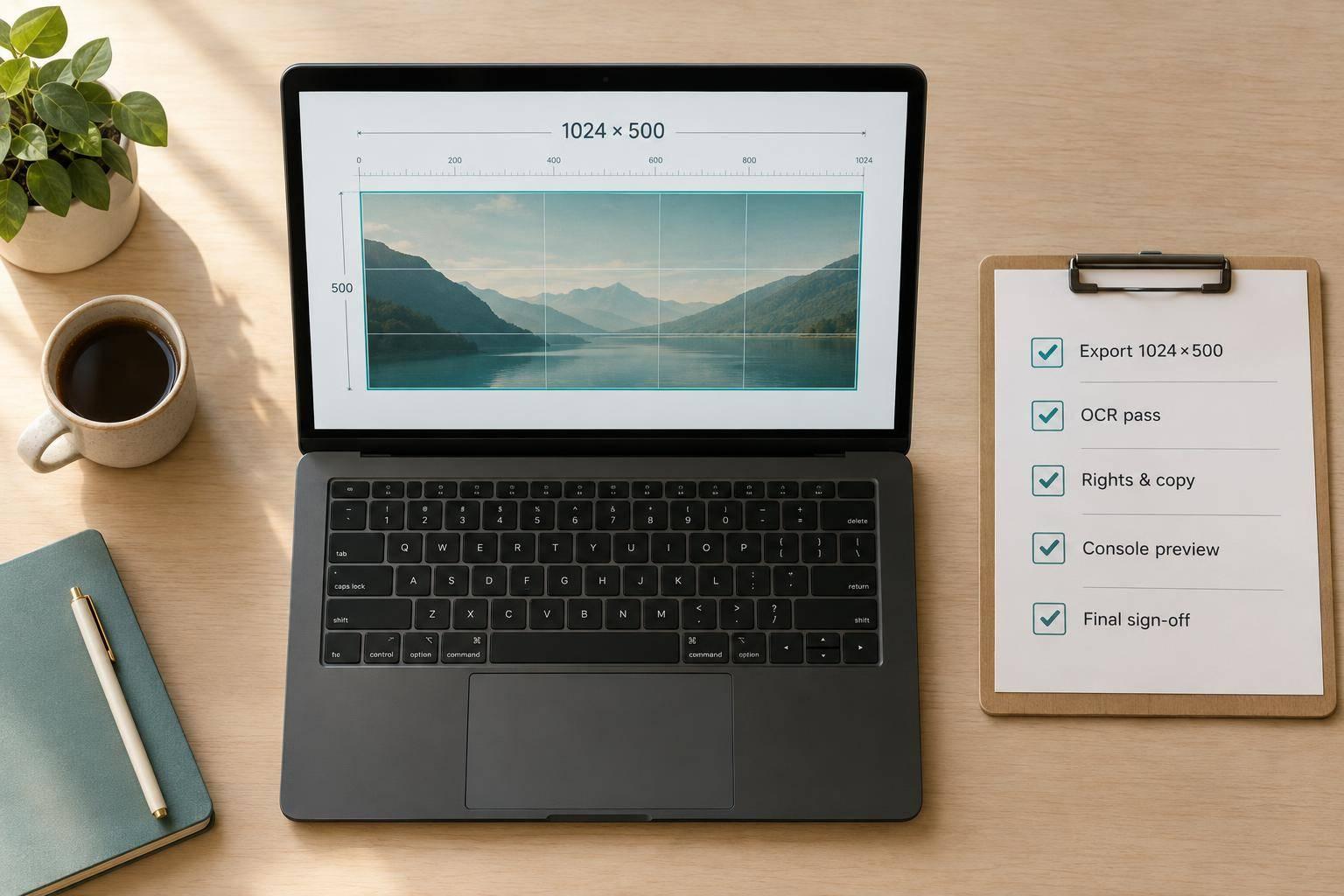
I check two things before uploading a Google Play feature graphic: the file and what it says. I start with a 1,024 × 500-pixel JPEG or 24-bit PNG with no alpha channel, then have people review the copy, design, rights, and fit with the current app.
My pre-upload checklist covers:
- File checks: Validate the export, confirm it opens, and compare OCR results with approved copy.
- Human review: Check claims, readability, branding, permissions, policy, and app accuracy.
- Upload review: Inspect available Play Console previews for cropping, distortion, and covered text.
- Final sign-off: Save dated approvals tied to the exact file version and SHA-256 hash.
Passing file checks doesn’t mean the graphic is ready. I keep publishing <u>blocked until unresolved issues are cleared</u>, then confirm the approved file is published - not just saved for review.
Checklist 1: Automated File and Text Checks
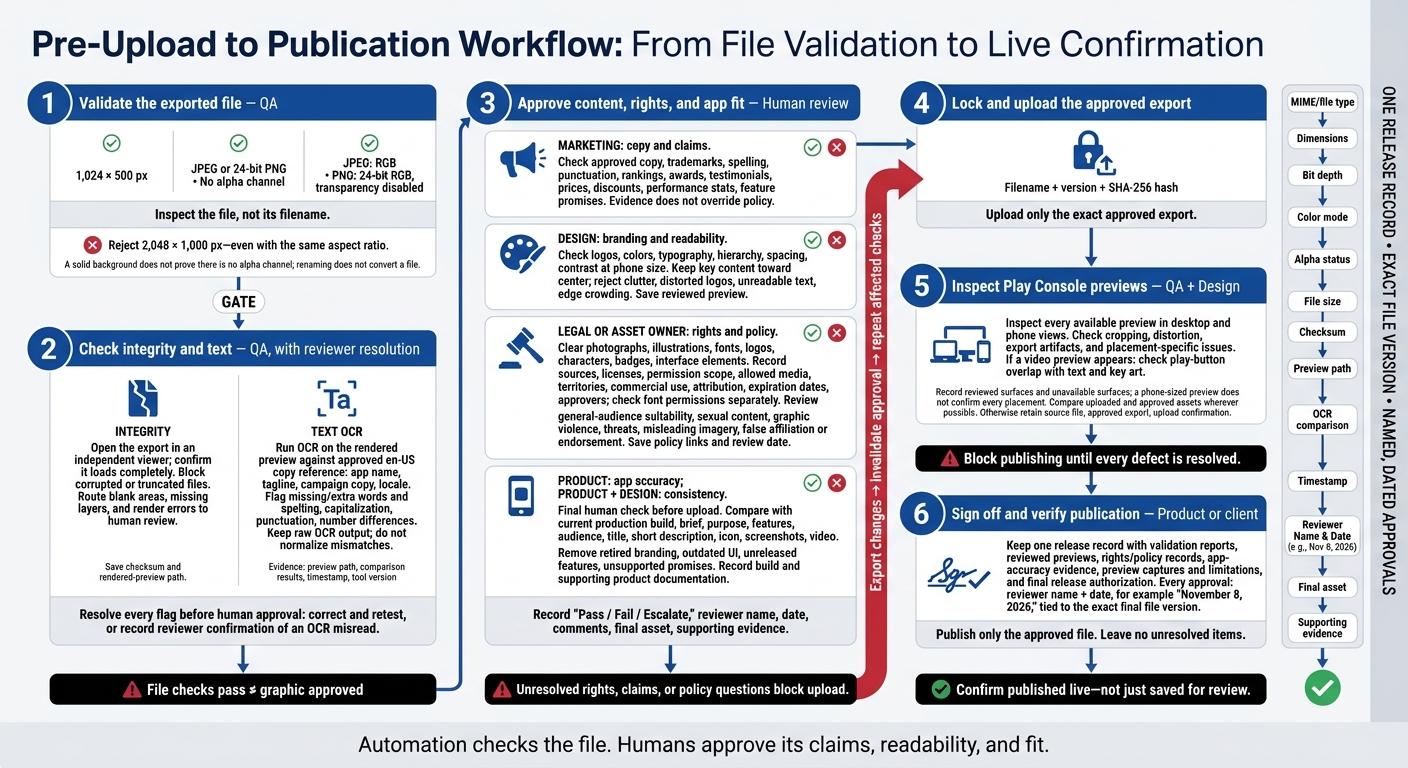
This gate checks only the exported file. It does not approve the graphic itself.
Check Dimensions, File Type, and Export Settings
☐ Inspect the exported file - not its filename. Require 1,024 × 500 px, JPEG or 24-bit PNG, and no alpha channel. Reject 2,048 × 1,000 px, even though the aspect ratio matches. Check PNG channel metadata: a solid background does not prove there’s no alpha channel. Renaming a file does not convert it.
☐ Record the file type (MIME), dimensions, bit depth, color mode, alpha status, and file size in bytes. Export JPEG as RGB or PNG as 24-bit RGB with transparency disabled.
Check File Integrity and OCR Results
☐ Open the exported file in an independent viewer and confirm it loads completely. Block corrupted or truncated files. Send blank areas, missing layers, or render errors to human review. Save a checksum and rendered-preview path to identify the exact file tested.
☐ Run OCR on the rendered preview. Compare the results with the approved en-US app-store copy reference, including the app name, tagline, campaign copy, and locale. Flag missing or extra words and differences in spelling, capitalization, punctuation, or numbers. Keep the raw OCR output; don’t normalize or rewrite mismatches.
☐ Resolve every flag before human approval. Either correct and retest the exported file or record a reviewer’s confirmation that OCR misread it. Attach the rendered-preview path, comparison results, timestamp, and tool version to the QA record. Technical failures block approval; unresolved text flags go to human review.
sbb-itb-622dc24
Checklist 2: Human Review of Copy, Rights, and Design
Once automated checks pass, send the asset for human review. This step checks what file validation cannot: copy accuracy, rights, and fit with the app.
Assign a named reviewer to each check. Record pass, fail, or escalate, along with the reviewer’s name, date, comments, final asset, and supporting evidence. Unresolved rights or claims block upload.
Review Copy, Branding, and Readability
☐ Marketing approves copy and claims. Check every word against the approved copy version, including trademarks, spelling, and punctuation. Review rankings, awards, testimonials, prices, discounts, performance stats, and feature promises against current policy. Supporting evidence helps reviewers assess claims, but it does not override policy.
☐ Design reviews logos, colors, typography, hierarchy, spacing, and contrast. View the asset at phone size. The message and app identity must be clear without zooming. Reject distorted logos, clutter, unreadable text, or key elements too close to the edges. Keep key content toward the center and save the reviewed preview.
Verify Asset Rights and Policy Compliance
☐ Legal or the asset owner clears every asset. For photographs, illustrations, fonts, logos, characters, badges, and interface elements, keep records of sources, licenses, permission scope, allowed media, territories, commercial-use status, attribution, expiration dates, and approver names. Check font permissions separately.
Review suitability for a general audience, sexual content, graphic violence, threats, and misleading imagery. Block anything that falsely suggests affiliation, endorsement, or app identity. Save the policy links and review date. Unresolved policy questions block upload.
Match the Graphic to the Current App
Make this the final human check before upload.
☐ Product approves accuracy; Product and Design approve consistency. Compare the graphic with the current production build and store assets. Check the brief, purpose, features, audience, title, short description, icon, screenshots, and video. Remove retired branding, outdated UI, unreleased features, and unsupported promises.
Record the build reviewed and link to supporting product documentation. Colors, typography, and visual cues can complement one another without matching exactly, but the listing must look like it belongs to one app.
Approval Gates: Upload, Preview, and Sign-Off
After human approval, lock the exact export, check the Play Console preview, and record final sign-off.
☐ Upload only the approved export. Link approval to the exact filename, version, and SHA-256 hash. If the export changes, invalidate approval and repeat the affected checks.
Review the Uploaded Play Console Preview
☐ QA and Design must inspect every available preview in desktop and phone views. Check for cropping, distortion, export artifacts, and placement-specific issues in Play Console. If a video preview appears, make sure the play button doesn’t cover text or key art. Block publishing until every defect is resolved.
Record which surfaces were reviewed and which were unavailable. A phone-sized preview doesn’t confirm every Google Play placement. Compare the uploaded asset with the approved export wherever Play Console allows it. Otherwise, keep the source file, approved export, and upload confirmation.
Save Evidence and Final Approval
☐ Keep one release record for the final file. Record the evidence and results in the table below. Every approval must include the reviewer’s name and date, using a format such as November 8, 2026.
| Check | Owner | Evidence | Status |
|---|---|---|---|
| Dimensions, file type, and alpha check | QA | Validation report; filename; version; SHA-256 hash; export timestamp | Pass |
| Copy, branding, and readability | Design | Approved previews; review notes | Pass |
| Rights and policy review | Legal | Rights records; policy checklist | Pass |
| App accuracy | Product | Release notes; in-app comparison | Pass |
| Play Console preview | QA and Design | Preview captures; reviewed surfaces; limitations | Pass |
| Release authorization | Product or client | Named, dated sign-off; file version | Approved |
Conclusion: Publish Only the Approved File
Once both QA gates pass, publish only the approved file that matches the uploaded preview. Leave no unresolved items.
Automation checks the file. Humans approve its claims, readability, and fit.
After sign-off, check that the approval record names the exact uploaded file version. Then confirm that the Play Console action publishes it live - not just saves it for review.
FAQs
How should I QA localized feature graphics?
Run automated checks to verify dimensions, file types, and color contrast against WCAG standards.
Then have human reviewers check text accuracy and fit, suitability for U.S. audiences, brand consistency, and design clarity. Confirm image rights, policy compliance, and consistency with your app.
Before submission, test with native users to make sure the graphics communicate your app’s value.
Which checks must I repeat after a minor edit?
After even a small edit, run every check again: dimensions, file format, text accuracy, image rights, compliance with current policies, and alignment with your app’s design and branding.
Automated tools can flag technical metadata issues, but a person still needs to review the visuals for quality and brand consistency.
How can I check placements unavailable in Play Console?
Use external testing to check your screenshots across devices. Google Play Console offers limited previews across device configurations, while automated tools can generate and preview screenshots for different device types and screen sizes.
Manual testing on actual devices is still needed to see how your visual assets look in everyday use. Appeneure recommends pairing automated checks with human visual review to confirm consistency and quality before final submission.
More from the studio