All blogs
Mobile App Development
How To Optimize App Idle States For Battery Life
Learn effective strategies to optimize app performance during idle states, improving battery life and user retention.
13 min read
How To Optimize App Idle States For Battery Life
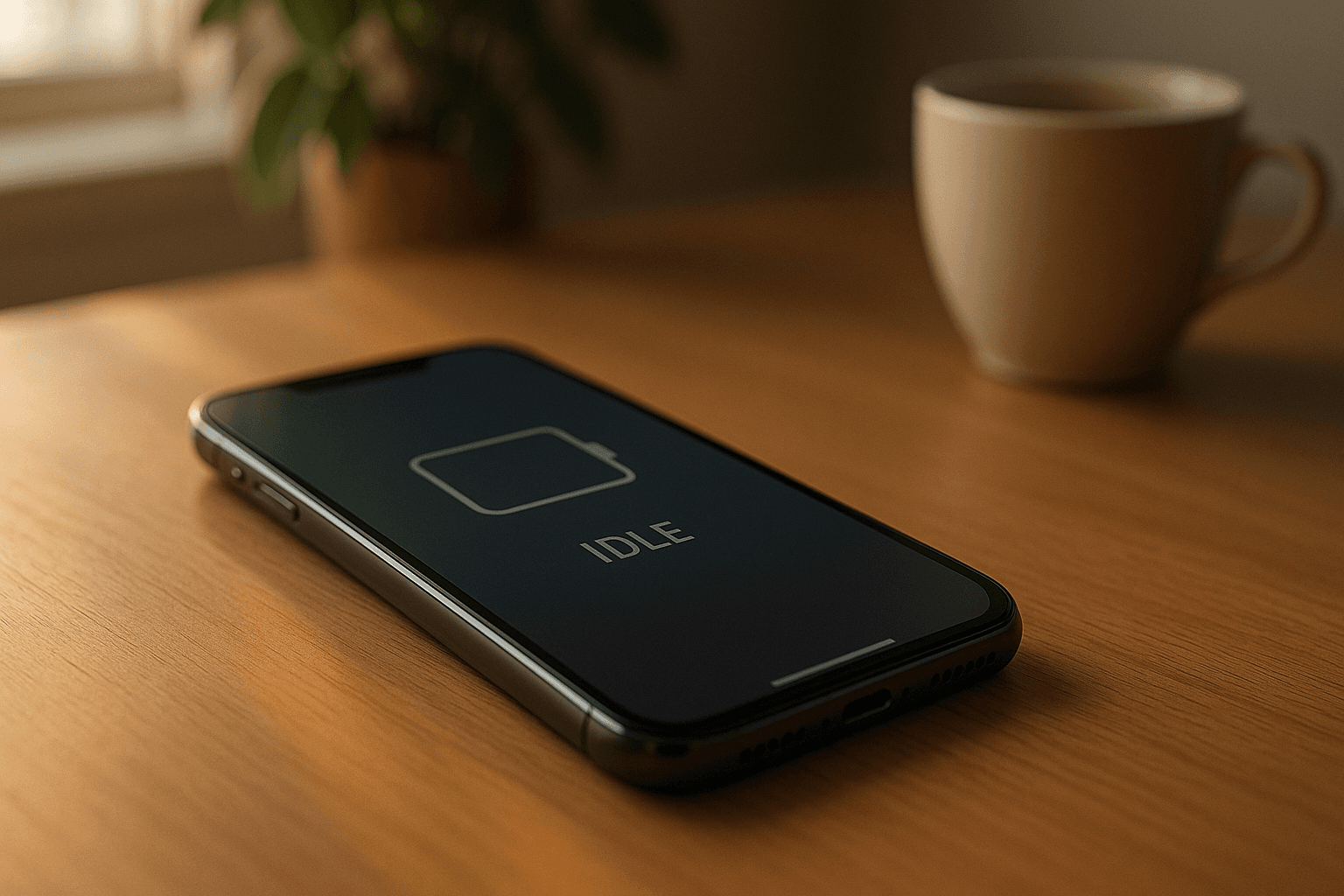
When your app drains battery during idle states, users notice - and they uninstall. 63% of users delete apps that impact their battery life too much. So, how can you fix this? By managing background tasks, reducing resource usage, and leveraging system tools like Android's Doze Mode or iOS's Background App Refresh.
Here’s what you need to focus on:
- Background Tasks: Use system APIs like WorkManager (Android) or BGAppRefreshTask (iOS) to schedule tasks efficiently.
- CPU & Memory: Stop unnecessary threads, clean up memory leaks, and delay heavy operations.
- Network Activity: Batch requests, cache data, and compress responses to minimize power usage.
- Wake Locks: Release them quickly to avoid keeping devices awake unnecessarily.
- Third-Party Libraries: Audit and configure SDKs to reduce idle-state impact.
Testing tools like Android Studio Profiler, Xcode Instruments, and Firebase Performance Monitoring can help measure improvements. Focus on metrics like CPU wake time, background task duration, and network request frequency.
How to Stop iPad Battery Drain When It's in StandBy Mode
How App Idle States Impact Battery Life
To understand how idle states affect battery life, it's essential to look at how Android and iOS handle background processes. Despite years of advancement in these systems, poorly optimized apps can still cause unnecessary battery drain.
Key Features: Doze Mode, App Standby Buckets, and Background App Refresh
On Android, Doze Mode kicks in when a device is idle, limiting network access, alarms, and background services. Additionally, apps are categorized into App Standby Buckets based on how often they’re used. Apps that are rarely opened face tighter restrictions on background activity compared to those used frequently.
Meanwhile, iOS uses Background App Refresh to predict user behavior and refresh apps accordingly. The system also groups background tasks together into batches, reducing how often the device needs to fully wake up. Apps that overuse background processes may see their privileges reduced over time.
The Battery Drain Culprits: CPU, Network, and Wake Locks
Battery drain during idle states often comes down to three main issues: CPU usage, network activity, and wake locks.
- CPU Usage: Even small amounts of continuous CPU activity during idle periods can add up, draining the battery unnecessarily.
- Network Activity: Frequent network requests prevent the device’s radio from entering a low-power state. Instead of sending numerous small transmissions, batching these requests can significantly reduce power consumption.
- Wake Locks: Wake locks are used to keep a device from entering deep sleep, ensuring critical tasks are completed. However, holding wake locks longer than necessary can prevent the device from conserving power. Releasing wake locks promptly and using them sparingly is crucial.
When apps fail to manage these factors effectively, they can drain battery life even when they aren’t actively in use. Optimizing these processes is a critical step in developing energy-efficient apps. The next section will explore practical strategies to address these challenges.
Managing Background Tasks for Better Battery Life
Keeping background tasks in check is a key strategy for reducing battery drain. By leveraging system APIs, developers can ensure tasks are scheduled during the most energy-efficient times. Let’s dive into how Android and iOS handle this and how you can fine-tune task management to preserve battery life.
Using System APIs for Smart Task Scheduling
Modern mobile operating systems provide APIs that take the guesswork out of scheduling background tasks. On Android, the WorkManager API simplifies this process by handling variations across API levels and adhering to system constraints like Doze Mode and App Standby. It also groups tasks together, reducing unnecessary device wake-ups.
For instance, you can use OneTimeWorkRequest or PeriodicWorkRequest to schedule tasks like syncing data. By setting these to run only when the device is charging and connected to Wi-Fi, you can significantly cut down on battery usage.
On iOS, the BGAppRefreshTask is ideal for short, lightweight operations, while the BGProcessingTask is better suited for more intensive tasks. These frameworks automatically adjust execution timing based on user behavior and device conditions.
Both platforms prioritize system-initiated batching, where similar tasks from multiple apps are grouped together. This approach is far more efficient than allowing each app to wake the device independently, leading to noticeable battery savings.
Setting Task Frequency and Priority Levels
Fine-tuning task frequency and priority is another effective way to conserve battery life. Start by categorizing tasks into tiers such as:
- Critical tasks: Real-time updates, like messaging or live location tracking.
- Important tasks: Data synchronization or content prefetching.
- Optional tasks: Analytics or other non-urgent operations.
For critical tasks on Android, you can use expedited WorkManager tasks, but these should be reserved for rare cases since they bypass some system optimizations. Instead of sticking to fixed schedules, base task intervals on real user behavior. For example, if a user only opens a social media app a few times a day, frequent background checks aren’t necessary.
Adaptive scheduling is another powerful tool. If a user hasn’t interacted with an app for several days, reducing its background activity makes sense. Both Android and iOS offer usage statistics that can help developers make these adjustments intelligently.
Additionally, schedule resource-heavy tasks for when the device is on Wi-Fi and charging. This not only conserves battery but also respects users’ data plans and ensures better device performance.
The key is to gradually reduce unnecessary background activity. Start with conservative scheduling and only increase frequency if user engagement justifies it. Many developers have found that cutting down on background processes can dramatically improve battery life without sacrificing essential functionality.
Reducing Resource Usage During Idle States
Once you've fine-tuned how your app schedules background tasks, the next step is cutting down on the resources it consumes when it’s not actively in use. Even small reductions in resource usage can lead to noticeable battery improvements.
Lowering CPU and Memory Usage
Managing threads effectively is one of the best ways to reduce CPU usage during idle times. Background threads that aren’t essential can drain processing power unnecessarily. Use thread pooling and shut down non-critical threads when the app enters an idle state.
Delay resource-heavy operations until they’re absolutely needed. This approach not only reduces CPU usage but also trims the app’s memory footprint during typical operations.
Watch out for memory leaks - they might not seem like a big deal at first, but over time, they can snowball into major performance issues. Leaks often lead to excessive garbage collection, which drains the battery. Be vigilant about cleaning up listener registrations, static references, and objects holding onto context unnecessarily.
When your app pauses, make sure to cancel timers, animations, and periodic callbacks. These processes can continue running in the background, consuming CPU cycles when they’re not needed. For Android, this cleanup should happen in onPause(), and for iOS, in viewWillDisappear().
Using object pooling can also help reduce the strain caused by frequent garbage collection. Combining this with thread pooling and delayed initialization creates a solid foundation for better CPU and memory efficiency.
Network Optimization: Batching Requests and Caching Data
Network operations are notorious for draining batteries, especially when they’re frequent during idle states. Batching requests is an effective way to cut down on this drain. Instead of sending multiple API calls, consolidate user data, notifications, and content updates into a single request. This reduces how often the radio module powers up, which is a major source of network-related battery consumption.
Implementing intelligent caching can go a step further by eliminating some network requests altogether. Use HTTP caching headers and local storage for data that doesn’t change often, such as user profiles, app settings, or static content.
Compression can also make a big difference. Compressing API responses with tools like gzip reduces the amount of data transferred, speeding up downloads and cutting down on radio usage. Together, caching and compression help minimize unnecessary network activity.
For apps that can support it, consider an offline-first architecture. This involves storing critical data locally and syncing it only when network conditions are optimal. It’s a great way to avoid constant connectivity checks and background syncs.
Using connection pooling and keep-alive headers can streamline network usage even further. By reusing existing connections instead of creating new ones for every request, you reduce the overhead from setting up and tearing down connections.
Checking Third-Party Libraries for Efficiency
Third-party libraries can have a surprising impact on battery life. Tools like analytics SDKs, crash reporting systems, and advertising frameworks can be resource-heavy if not configured correctly.
Use profiling tools to regularly audit your dependencies and spot any libraries that are consuming too many resources. For instance, some analytics SDKs send data every few seconds by default, but you can often adjust these settings to batch uploads less frequently.
Always keep your libraries up to date. Older versions may include inefficient background processes that have been improved in newer releases.
Proper configuration is just as important as picking the right library. Many popular libraries offer settings to reduce their idle-state impact. For example, advertising SDKs often allow you to adjust ad refresh rates, analytics tools let you batch events, and social media integrations can sync less frequently.
For non-critical features, consider lazy loading. This means delaying the loading of certain libraries until the user interacts with the associated feature. It’s a simple way to reduce initial resource consumption and improve startup performance.
Another strategy is library consolidation. Instead of relying on multiple libraries for similar tasks, choose one that can handle several functions efficiently. This reduces the overhead of managing multiple SDKs and their resource demands.
Finally, make performance testing a regular habit. Test how each third-party library affects battery consumption by running automated tests with and without the dependency. This way, you can identify and address resource-heavy libraries before they become a problem for your users.
sbb-itb-622dc24
Using Built-in Platform Features for Battery Management
iOS has a built-in mechanism to manage background refresh, ensuring battery conservation during idle times. This feature works seamlessly with similar tools on Android, creating a well-rounded approach to battery efficiency.
Configuring iOS Background App Refresh
The Background App Refresh feature in iOS allows users to control how apps update when not actively in use. To adjust these settings, go to Settings > General > Background App Refresh on your iOS device.
You can choose from three options: Wi-Fi only, Wi-Fi & Cellular, or Off. To extend battery life, it's best to select Wi-Fi only or turn off the refresh for apps that aren't essential.
Tracking and Testing Idle State Performance
Once you've made adjustments to improve battery efficiency, it's time to measure the results. Testing how your app performs in idle states requires the right tools and a focus on specific metrics.
Tools for Measuring Battery Usage
Several tools can help you monitor and analyze your app's energy consumption:
- Android Studio Profiler: This built-in tool provides detailed insights into battery usage on Android. The Energy Profiler breaks down real-time energy data, including CPU, network, and GPS usage, while pinpointing sections of code that drain power.
- Xcode Instruments: For iOS developers, Xcode Instruments offers the Energy Log instrument, which measures your app's energy impact compared to other system processes.
- Battery Historian: Google's Battery Historian analyzes Android battery usage by processing battery dump files. It visualizes power consumption trends, showing when your app wakes the device and how long these wake periods last.
- Firebase Performance Monitoring: This tool tracks custom battery metrics across various user scenarios. It provides real-world data from diverse devices, offering a broader perspective on how your optimizations perform.
With these tools, you can dive into the metrics that matter most for idle state performance.
Important Metrics to Track
When evaluating your app's idle state efficiency, focus on these key metrics:
- CPU wake time: This measures how often your app disrupts the device's deep sleep mode. Optimized apps might only wake the device every 15–30 minutes, whereas poorly optimized ones wake it much more frequently.
- Network request frequency: During idle periods, your app should minimize network activity. Efficient apps batch requests, creating long gaps between network usage instead of frequent, small requests that drain the battery.
- Background task duration: This tracks how long your app remains active after the user leaves it. Ideally, background tasks should wrap up within 10–30 seconds, allowing the app to return to an idle state quickly.
- Memory footprint stability: Monitor whether your app's memory usage remains steady during idle times. Gradual increases could indicate memory leaks, which can degrade performance over time.
- Doze mode compliance: On Android, apps should respect Doze mode, which conserves battery by limiting background activity. Apps that frequently override Doze without valid reasons will show poor battery performance.
Comparing Different Monitoring Tools
To validate your optimizations, consider the strengths of various monitoring approaches:
- Platform-native tools: Android Studio Profiler and Xcode Instruments provide in-depth technical data but are limited to active development sessions.
- Real-device testing: Testing on physical devices gives the most accurate battery data since emulators can't fully replicate hardware behavior. However, controlled environments make it easier to isolate specific changes.
- Analytics-based monitoring: Tools like Firebase Performance Monitoring provide insights from real users across different devices and conditions. While these tools offer less granular data, they reveal how your app performs in everyday use.
- Automated testing frameworks: These frameworks can integrate battery performance tests into your development pipeline. They help catch regressions early but require an upfront investment to set up meaningful test scenarios.
For the best results, combine multiple methods. Use development tools for detailed analysis, analytics for real-world performance insights, and automated tests to maintain consistent battery efficiency. This layered approach ensures your app delivers better battery life for all users.
Conclusion: Building Energy-Efficient App Idle States
Improving idle states isn't just about extending battery life - it’s about creating apps that users trust and enjoy. When a user notices their battery draining too quickly, they’re likely to pinpoint the culprit and uninstall the app responsible. Developers have a unique opportunity to prevent this by designing apps that are gentle on battery usage.
Key Takeaways for Developers
Smart resource management is at the heart of battery efficiency. Leveraging system APIs like Android’s JobScheduler or iOS’s Background App Refresh allows developers to schedule tasks during moments when the device can handle background activity without draining energy unnecessarily.
Some effective strategies include:
- Batching network requests and using intelligent caching to minimize energy use during idle times
- Optimizing memory and CPU usage by cleaning up unused resources and skipping unnecessary background services
- Maintaining stable memory usage during idle periods to improve overall battery performance
Modern platforms also offer tools like Android’s Adaptive Battery and iOS’s Background App Refresh, which give users more control over app behavior. Instead of bypassing these features, developers should design apps that work seamlessly within these constraints. Apps that align with system-level optimizations often earn better reviews and fewer battery-related complaints.
By focusing on these strategies, developers can create apps that respect both the device and the user’s experience.
How Appeneure Can Assist
As highlighted in this guide, managing background tasks and resources effectively is a technical challenge - but one that pays off. Appeneure specializes in building battery-friendly mobile applications, with experience spanning over 100 clients across industries like health tech, e-commerce, and AI-driven solutions.
Our team ensures energy efficiency is a core consideration from the start. Whether you’re creating a new app or refining an existing one, we can help you implement the resource management techniques and platform-specific optimizations discussed here.
With expertise in developing apps for dating, fitness, and even complex AI-powered platforms, we know that every app type has unique battery demands. Our thorough testing and optimization process ensures your app delivers top-notch performance without compromising battery life. Let us help you build an app that users will love - and keep.
FAQs
How do Android's Doze Mode and iOS's Background App Refresh help save battery when apps are idle?
Android's Doze Mode helps save battery by placing the device in a deep sleep state after a period of inactivity. While in this state, background activities like network connections and CPU tasks are mostly paused. However, there are brief maintenance intervals where apps can perform necessary updates or tasks.
On iOS, the Background App Refresh feature regulates how often apps can update in the background. When the device is in Low Power Mode, this feature becomes even more restricted. For additional power savings, you can disable Background App Refresh entirely, preventing apps from consuming energy while idle.
What are common mistakes developers make that cause apps to drain battery during idle states?
When apps are idle, certain developer oversights can result in unnecessary battery drain. A frequent issue is allowing background processes to run unchecked. For example, leaving the CPU, GPS, or network connections active without proper controls can keep an app unnecessarily busy, even when the user isn't interacting with it. This constant activity quietly eats away at the device's battery life.
Another common misstep is neglecting to fine-tune background activities. Things like non-essential updates or fetch operations often continue running when they aren't needed, wasting valuable power. To tackle this, developers should aim to reduce resource usage during idle periods. Background tasks should only run when they're truly necessary, ensuring the app stays efficient without compromising the user experience.
How can I test and measure the impact of optimizations on my app's battery life using tools like Android Studio or Xcode?
To gauge how your app changes influence battery life, tools like Xcode Instruments or Android Studio Profiler are your go-to options. These platforms allow you to track real-time power usage across different device components, including the CPU, network, and overall energy consumption. Pay close attention to idle states and background activities to uncover opportunities for improvement.
By comparing performance metrics from before and after your optimizations, you can evaluate their effectiveness. This analysis helps you refine your app to boost battery efficiency, ultimately enhancing the user experience.
More from the studio