All blogs
Mobile App Development
CameraX and ML Kit: Live Text Recognition in Android
On-device live text recognition with CameraX and ML Kit—process latest frames, close ImageProxy, map overlays, and handle rotation.
6 min read
CameraX and ML Kit: Live Text Recognition in Android
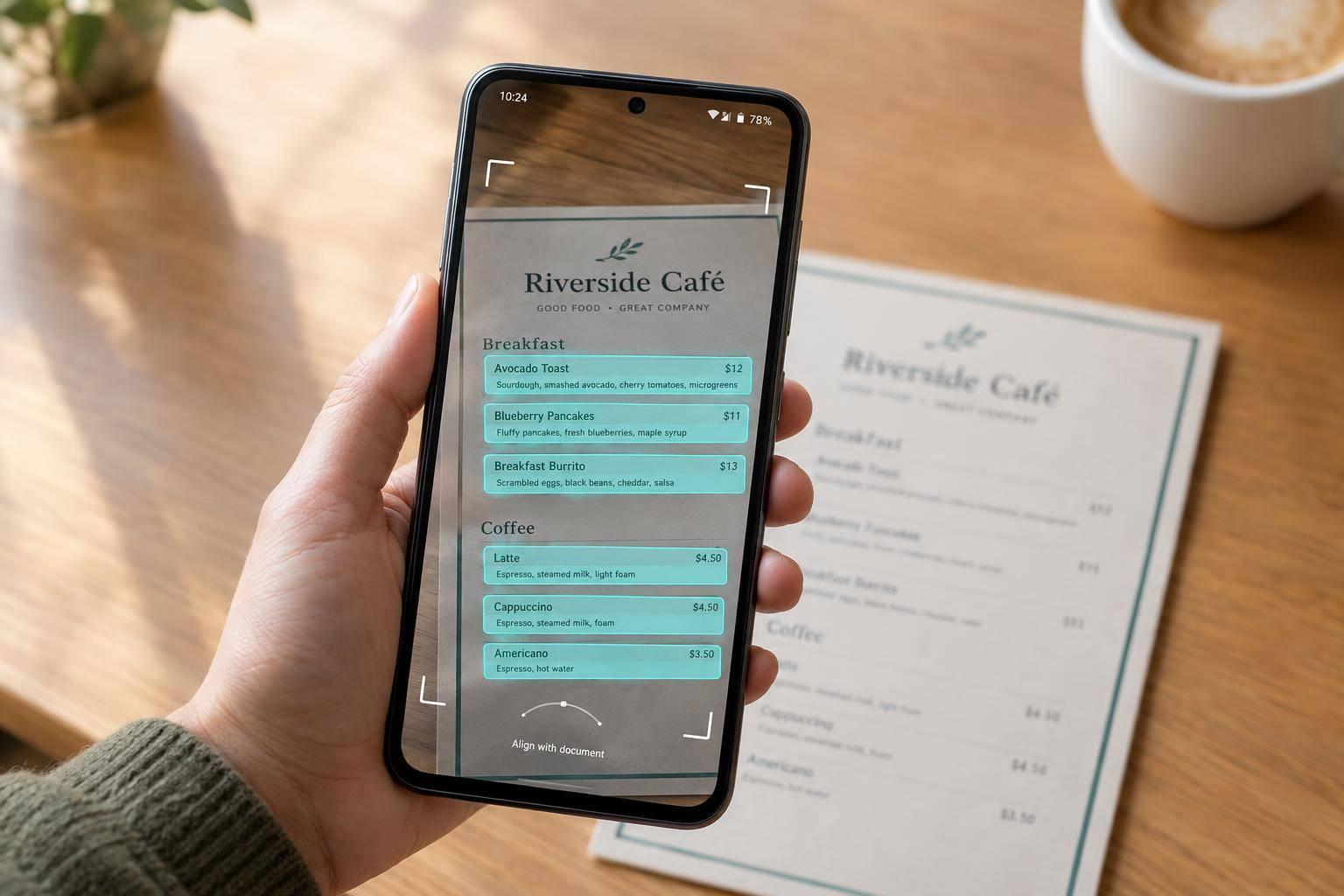
I use CameraX and ML Kit to read text on-device while the camera preview stays live. The key: process the latest frame, close every ImageProxy after OCR finishes, and map text outlines to the preview - not directly to the screen.
Here’s the flow I’ll cover:
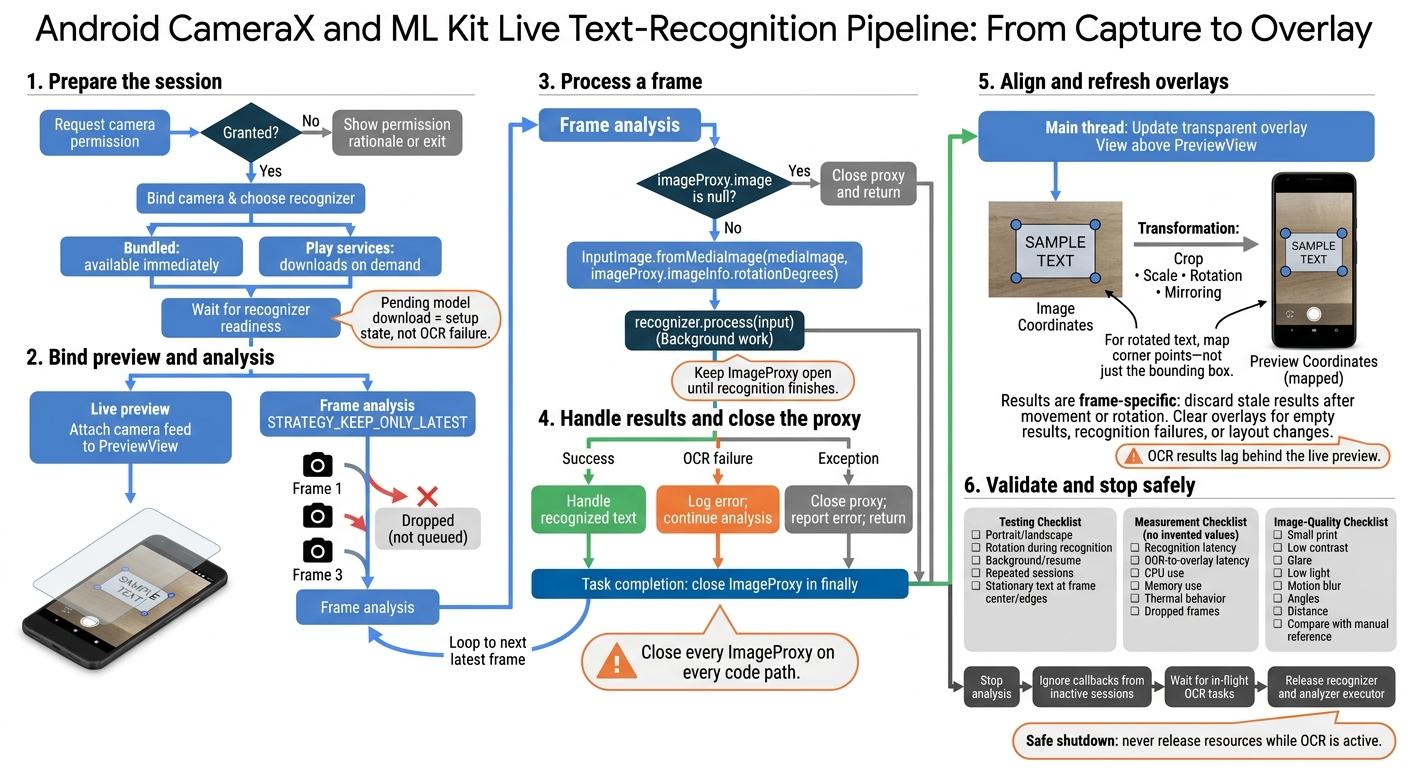
- Set up: Request camera access, choose a text model, and bind preview and analysis to the screen lifecycle.
- Process frames: Pass rotation data, skip queued frames, and handle errors without stopping analysis.
- Draw outlines: Account for crop, scale, rotation, and mirroring. Update the overlay on the main thread and discard stale results.
- Test and stop safely: Check alignment, accuracy, latency, and resource use. Let active OCR tasks finish before releasing resources.
My rule: <u>a working OCR result is only part of the job</u>. The boxes must line up, the preview must stay responsive, and cleanup must work - even when recognition fails.
Set Up CameraX and ML Kit
Add Dependencies and Request Camera Permission
Add the CameraX and ML Kit text-recognition dependencies. Request camera permission before creating the camera use cases, and bind the camera only after the user grants access.
Choose a Text Recognition Model
Choose the recognizer script before connecting the analyzer so live OCR uses the right model from the start. A bundled model is available immediately; a Play services model downloads on demand.
Wait until the recognizer is ready before connecting it to the live analyzer and starting analysis.
Bind Preview and ImageAnalysis to the Lifecycle
Set up Preview and ImageAnalysis with the same LifecycleOwner, and attach the camera feed to a PreviewView.
Convert each frame to InputImage, including its rotation metadata. Send it to the recognizer on a background thread to keep the preview responsive.
Use a latest-frame-only backpressure strategy so frames don't queue up while recognition runs. Close every ImageProxy after recognition finishes.
sbb-itb-622dc24
Integrating Google's ML Kit with CameraX and Android Jetpack Compose: Text Recognition in Real-Time
Handle Frame Rotation and ImageProxy Cleanup
Frame analysis must keep running, even when OCR fails.
Create InputImage With Rotation Metadata
Pass the correct rotation for each frame, and make sure cleanup works before running OCR.
If imageProxy.image is null, close the proxy and return. Otherwise, create the input with InputImage.fromMediaImage(mediaImage, imageProxy.imageInfo.rotationDegrees).
Read Text Results and Handle Errors
Handle recognized text when OCR succeeds. If it fails, log the error and continue with the next frame.
Close ImageProxy After Recognition Completes
Keep the proxy open until recognition finishes. This pattern closes it on every path: a null image, an exception, or task completion.
override fun analyze(proxy: ImageProxy) {
    val mediaImage = proxy.image
    if (mediaImage == null) {
        proxy.close()
        return
    }

    val task = try {
        val input = InputImage.fromMediaImage(
            mediaImage,
            proxy.imageInfo.rotationDegrees
        )
        recognizer.process(input)
    } catch (e: Exception) {
        proxy.close()
        reportError(e)
        return
    }

    task.addOnCompleteListener { completed ->
        try {
            if (completed.isSuccessful) {
                completed.result?.let { text ->
                    handleTextResult(text)
                }
            } else {
                completed.exception?.let { error ->
                    reportError(error)
                }
            }
        } finally {
            proxy.close()
        }
    }
}
Once frame cleanup works reliably, map the recognized text boxes onto the preview.
Stop Analysis and Release Resources
When the camera session ends, stop analysis and ignore callbacks from inactive sessions. Wait for in-flight tasks to finish before releasing the recognizer and analyzer executor.
Troubleshoot Camera and Recognition Errors
| Symptom | Likely cause | Fix |
|---|---|---|
| Preview runs but OCR stops updating | An unclosed proxy | Close the proxy on every path. |
| Old text appears after switching cameras | A stale callback ran | Ignore callbacks from inactive sessions. |
Draw Text Overlays on the Preview
Once each frame is cleaned up, map the recognized text onto the preview.
Map Text Boxes to Preview Coordinates
Place a transparent overlay View on top of PreviewView, with matching bounds. OCR returns image coordinates, but the preview may be cropped, scaled, rotated, or mirrored. Map the recognized bounds to preview coordinates so the boxes line up with the live camera image.
For rotated text, map the corner points - not just the bounding box. This gives a closer outline than an axis-aligned rectangle.
With the mapping in place, keep the overlay in sync with the latest frame.
Keep the Overlay in Sync
Update overlays on the main thread. Clear them when results are empty, recognition fails, or the layout changes.
Treat each OCR result as frame-specific, and discard stale results after camera movement or rotation. Live OCR lags behind the preview because recognition takes time.
Test OCR Accuracy and Performance
With rotation, cleanup, and overlays in place, test the full OCR loop under everyday conditions.
Test Rotation and Lifecycle Changes
Test on Android devices that reflect what your users have. Cover portrait and landscape orientations, rotation during recognition, moving the app to the background and resuming it, and repeated camera sessions.
Check rotation metadata after each orientation change. Place stationary text near the center and edges of the frame to check overlay alignment, stable analysis, and cleanup after each change. Then measure whether these changes affect latency or cause dropped frames.
Measure Latency and Resource Use
Record recognition latency, OCR-to-overlay latency, CPU use, memory use, and thermal behavior during extended sessions.
When recognition can't keep up with camera delivery, check that pending frames are dropped instead of piling up. Track these measurements over time, then adjust analysis resolution and recognition frequency without slowing the preview.
Improve Image Quality for OCR
Build a repeatable test set with manually checked reference text that reflects everyday use. Include small print, low contrast, glare, low light, motion blur, different angles, and changes in distance. Compare the recognized text with the reference text.
Improve lighting, focus, framing, and the size of text within the frame.
Conclusion: Review the OCR Release Checklist
Before release, check the live OCR flow against each item below.
- Lifecycle: Confirm that Preview and ImageAnalysis are bound to the screen lifecycle.
- Rotation: Pass imageProxy.imageInfo.rotationDegrees to InputImage.
- Backpressure and cleanup: Use STRATEGY_KEEP_ONLY_LATEST. Test frame cleanup and shutdown under load. Close every ImageProxy on every code path. At shutdown, stop analysis, let in-flight work finish, and release resources.
- Preview and overlays: Check that the preview stays responsive and overlays stay aligned after rotation, crop, and scale changes. Include text near the frame edges in your tests.
Treat a pending model download as a setup state, not an OCR failure.
FAQs
How do I choose the best resolution for live OCR?
Choose an input resolution that fits your processing time budget and the text sizes you usually scan. Higher resolution can improve recognition accuracy, but it also slows frame processing. Use the lowest resolution that keeps text readable instead of processing full-size frames.
Apply rotation and cropping consistently so OCR receives upright images containing the relevant regions. Use backpressure to skip frames when the OCR pipeline can’t keep up.
How do I map text outlines to a mirrored preview?
Transform ML Kit’s text coordinates to match the camera preview’s size and orientation. If the preview is mirrored, flip the detection bounding box’s X-coordinates relative to the preview width.
Use a matrix transformation to scale the coordinates from the image buffer’s dimensions to the preview view’s dimensions. This keeps the outlines aligned with the text on screen.
How can I detect stale OCR results?
Before sending each CameraX image frame to ML Kit for text recognition, tag it with a timestamp or sequence ID that distinguishes it from other frames. When the result returns, compare that tag with the latest frame’s timestamp or sequence ID. Discard results from older frames so stale text overlays don’t appear on the live camera preview.
More from the studio